You track daily tasks. But clients want monthly progress updates. How do you translate "installed 10 doors today" into "project is 65% complete"? A construction management app can automate this translation. Here's the complete process.
Why This Matters
The problem: Daily task tracking gives you trees. Progress reporting shows the forest.
What clients want: "Are we on schedule? What percentage is done?"
What you have: "Today we plastered 3 rooms, tomorrow we paint"
The bridge: A system to roll up daily work into meaningful progress metrics.
The Foundation: Planned vs Actual
All progress measurement compares what you planned vs what you actually did.
Formula: Progress % = (Work Done / Total Planned Work) × 100
Sounds simple. The challenge is defining "work done" and "total planned work" correctly.
Method 1: Task-Based Progress (Simplest)
Concept: Count completed tasks as percentage of total tasks.
How It Works
Step 1: List all tasks
- Break project into tasks
- Estimate duration for each
- Total: 120 tasks
Step 2: Track completion
- Day 1: Complete 2 tasks (2/120 = 1.7%)
- Day 2: Complete 3 tasks (5/120 = 4.2%)
- Day 30: Complete 40 tasks (40/120 = 33.3%)
Step 3: Weekly & monthly
- Week 1: 15 tasks completed = 12.5% progress
- Month 1: 40 tasks completed = 33.3% progress
Pros & Cons
Pros:
- Very simple
- Easy to explain
- Clear tracking
Cons:
- All tasks weighted equally (but some are bigger)
- Doesn't account for task complexity
- Can be misleading
Best for: Small projects with similar-sized tasks
Method 2: Weighted Task Progress (Better)
Concept: Weight tasks by estimated duration/effort.
How It Works
Step 1: Assign weights
- Task A: Excavation (5 days effort) = 5 points
- Task B: Column formwork (2 days effort) = 2 points
- Task C: Pour concrete (1 day effort) = 1 point
- Total project: 200 points
Step 2: Track completion with weight
- Complete Task A = 5 points done (5/200 = 2.5%)
- Complete Task B = 2 points done (7/200 = 3.5% total)
- Complete Task C = 1 point done (8/200 = 4% total)
Step 3: Weekly/monthly rollup
- Week 1: Completed 25 points worth of tasks = 12.5%
- Month 1: Completed 65 points = 32.5%
Pros & Cons
Pros:
- More accurate than simple counting
- Accounts for task size
- Still relatively simple
Cons:
- Requires upfront estimation
- Estimates might be wrong
Best for: Most construction projects. Good balance of accuracy and simplicity.
Method 3: Milestone-Based Progress (Client-Friendly)
Concept: Measure progress by milestones achieved.
How It Works
Step 1: Define key milestones
- Foundation complete = 20%
- Ground floor complete = 40%
- First floor complete = 60%
- Roof complete = 80%
- Finishing complete = 100%
Step 2: Track milestone achievement
- Month 1: Foundation complete → Report 20% done
- Month 2: Ground floor 50% done → Report 30% done (20% + 10%)
- Month 3: Ground floor complete → Report 40% done
Step 3: Report progress
- Weekly: "Moving towards foundation milestone, currently 15%"
- Monthly: "Foundation milestone achieved, 20% complete"
Pros & Cons
Pros:
- Clients understand easily
- Tied to payment milestones
- Clear achievements
Cons:
- Less granular
- Progress seems slow between milestones
Best for: Client reporting, payment tracking
Method 4: Hybrid Approach (Recommended)
Combine methods for best results.
The System
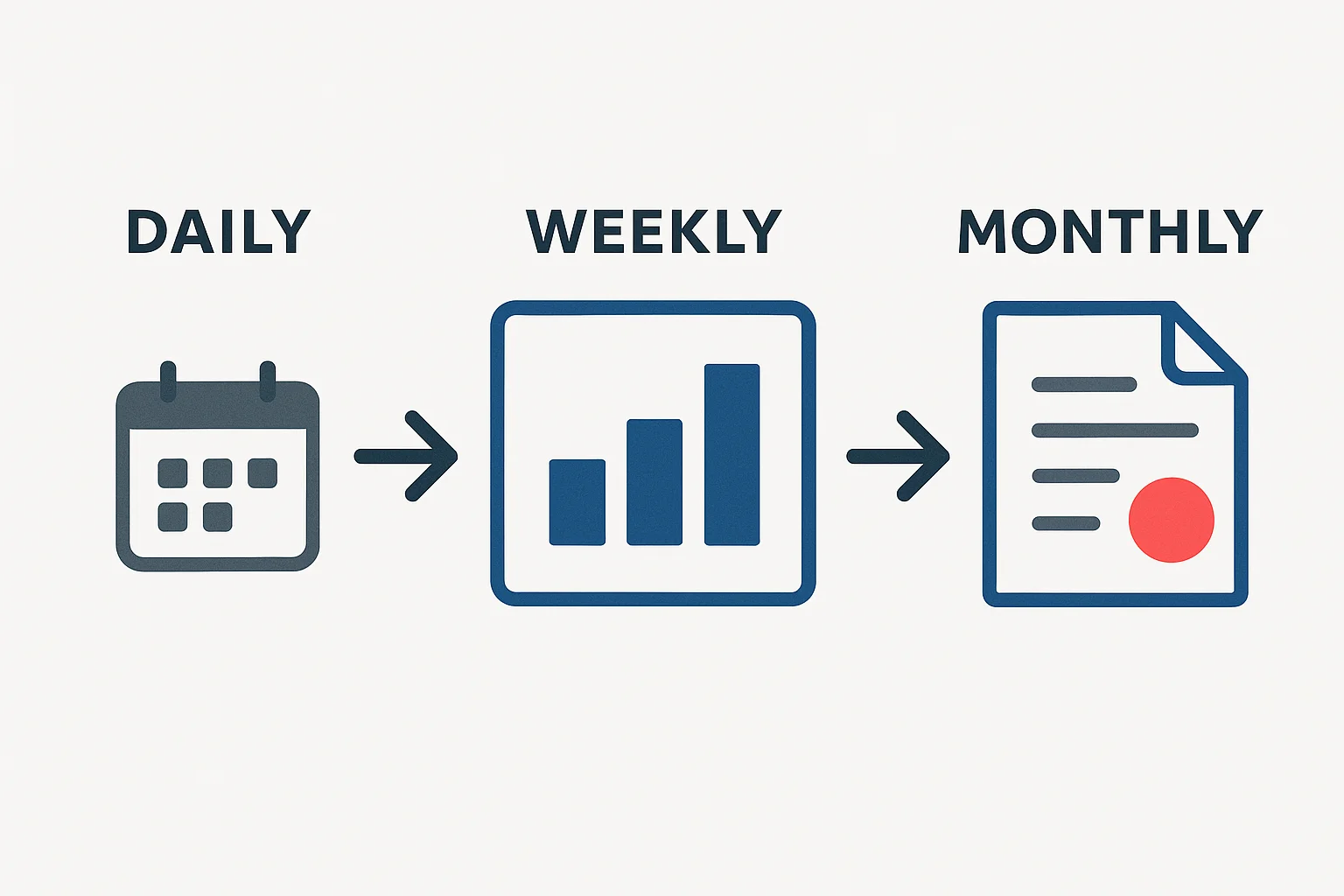
For internal daily tracking: Weighted tasks
For weekly team meetings: Task completion summary
For monthly client reports: Milestone-based with details
Example Flow
Daily:
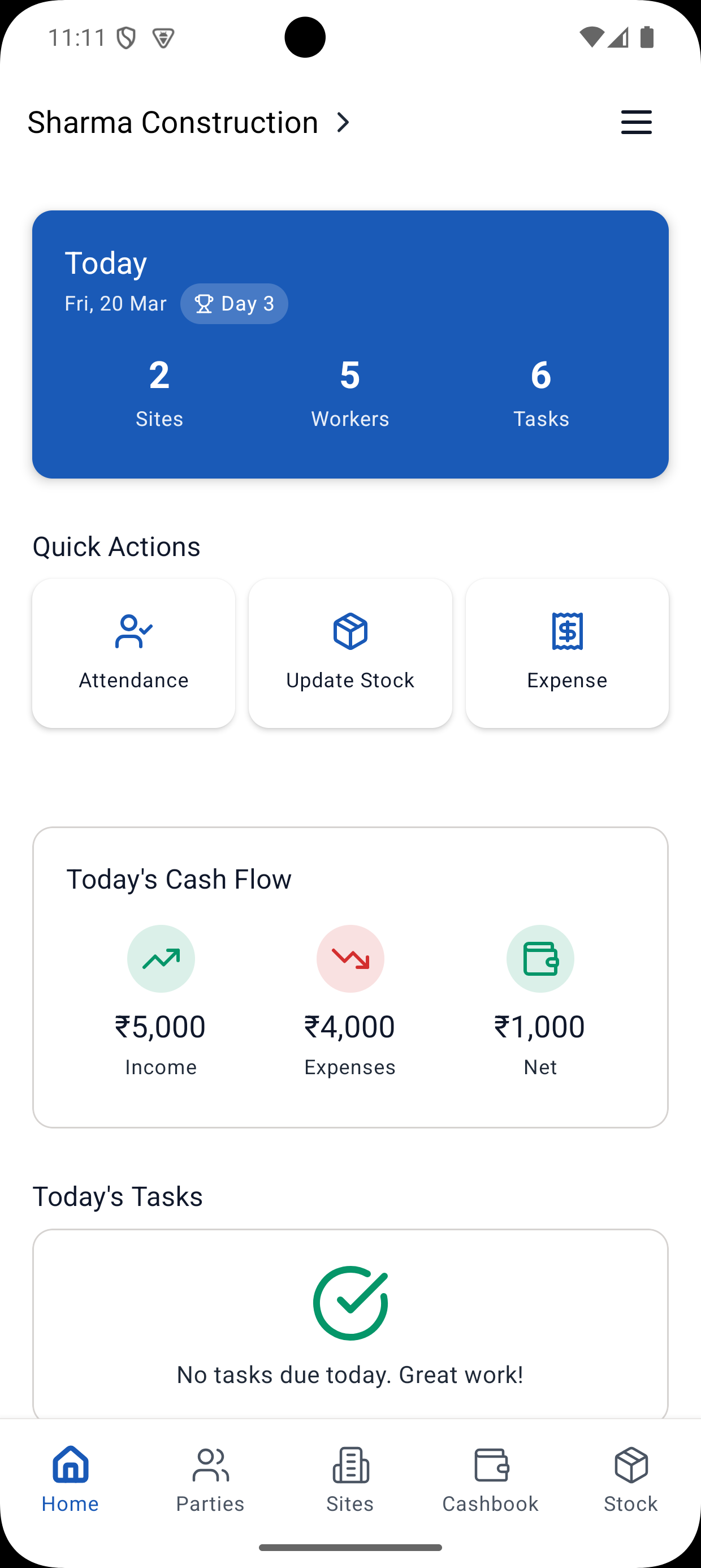
- Track task completion in app
- App calculates weighted progress automatically
- You see: "Today: 2.3% progress, This week: 8.5%, Total: 34.2%"
Weekly (internal):
- Review: "This week completed 15 tasks worth 12 points"
- "On track / Behind schedule by X%"
- "Next week target: 14 points"
Monthly (client):
- "Achieved 'Ground Floor Slab' milestone"
- "Project 40% complete (originally planned 42% by now)"
- "2% behind schedule, recovery plan: extend working hours next week"
- Include photos of achieved milestones
Rolling Up Data: The Mechanics
Daily → Weekly
What to include:
- Tasks completed this week
- Progress percentage gain
- Compare to weekly target
- Issues encountered
- Next week's focus
Example format:
Week 3 Summary (Jan 15-21)
- Tasks completed: 18 out of 20 planned
- Progress: 7.5% (Target was 8%)
- Status: Slightly behind (0.5%)
- Reason: 1 day rain delay
- Next week target: 8.5% (includes makeup work)
Weekly → Monthly
What to include:
- Total progress for month
- Milestones achieved
- Compare to monthly plan
- Cumulative progress
- Forecast for next month
Example format:
January Progress Report
- Start: 25% complete
- End: 40% complete
- Gain: 15% (Target was 16%)
- Milestones: Ground floor slab completed
- Schedule status: 1% behind (2 days)
- February target: Reach 55% (first floor complete)
Monthly → Project Summary
For project completion report:
- Timeline: Planned vs actual
- Cost: Budget vs actual
- Quality: Rework percentage
- Key achievements
- Lessons learned
The Visual Component
Numbers alone don't tell the story. Add visuals.
Progress Graphs
Line graph: Show progress over time
- X-axis: Time (weeks/months)
- Y-axis: Progress %
- Two lines: Planned vs Actual
Helps clients see: Are we catching up or falling behind?
Milestone Timeline
Visual timeline showing:
- Planned milestone dates
- Actual milestone dates
- Upcoming milestones
Color coding:
- Green: Achieved on time
- Yellow: Achieved late
- Red: Missed/delayed
Photo Grid
Before/after/progress photos:
- Weekly comparison
- Key milestone documentation
- Visual proof of work
Clients love photos. They're evidence and build trust.
Common Pitfalls to Avoid
Pitfall 1: Inflated Early Progress
Problem: Early tasks are easy, progress looks fast, then slows dramatically.
Example:
- Month 1: 40% progress (site prep, excavation)
- Month 2: 15% progress (complex structural work)
- Clients panic: "Why so slow now?"
Solution: Weight tasks by actual effort, not just count. Excavation might be 1 week but only 5% of total effort.
Pitfall 2: Ignoring Quality
Problem: Counting completed tasks that need rework.
Solution: Task isn't "complete" until it passes quality check.
Pitfall 3: No Buffer for Delays
Problem: Plan assumes perfect conditions, no room for rain, material delays, etc.
Solution: Add 10-15% buffer in planning. Under-promise, over-deliver.
Pitfall 4: Inconsistent Tracking
Problem: Tracking daily for 2 weeks, then forgetting, then tracking again. Data is useless.
Solution: Make daily tracking habitual. 5 minutes at end of day, every day.
Automation: Let Tools Do the Math
Modern construction apps automate this completely.
What good apps do:
- You mark tasks complete daily
- App calculates weighted progress automatically
- Generates weekly summary reports
- Creates monthly reports with graphs
- Tracks planned vs actual automatically
Time saved: Manual calculation = 2 hours/week. Automated = 0 hours.
Learn about: Task management automation
Template: Monthly Progress Report
Project: [Name]
Reporting Period: [Month Year]
Prepared by: [Your Name]
Date: [DD/MM/YYYY]

EXECUTIVE SUMMARY
- Overall Progress: [X]% (Target: [Y]%)
- Schedule Status: [On Track / X days behind/ahead]
- Budget Status: [On Budget / X% over/under]

PROGRESS DETAILS
Opening Progress (Start of month): [X]%
Closing Progress (End of month): [Y]%
Progress This Month: [Y-X]%
Target Progress This Month: [Z]%
Variance: [Z-(Y-X)]%

MILESTONES ACHIEVED
✓ [Milestone 1] - Completed on [Date]
✓ [Milestone 2] - Completed on [Date]

UPCOMING MILESTONES
→ [Milestone 3] - Planned [Date]
→ [Milestone 4] - Planned [Date]

WORK COMPLETED THIS MONTH
- [Activity 1]: [Details]
- [Activity 2]: [Details]
- [Activity 3]: [Details]

ISSUES & RESOLUTIONS
Issue: [Description]
Impact: [Days delayed / Cost impact]
Resolution: [What was done]

NEXT MONTH PLAN
- Target Progress: [X]%
- Key Focus: [Activities]
- Resource Needs: [Labor/Material/Equipment]

PHOTOS
[Include 4-6 key photos showing progress]
Customize this template for your projects. Client will love the structure and transparency.
Conclusion
Translating daily tasks into progress reports isn't complicated - it just needs a system.
Key takeaways:
- Use weighted tasks for accuracy
- Roll up daily → weekly → monthly systematically
- Combine numbers with visuals (graphs, photos)
- Be consistent in tracking
- Use automation where possible
- Be honest about delays and recovery plans
The goal: Your client should never wonder "how much is done?" They should always know exactly where the project stands.
Next Steps
- Choose a progress calculation method
- Create your report template
- Start tracking daily (most important!)
- Generate first weekly report
- Refine the system
Learn More
Ready to Transform Your Construction Business?
Start managing your sites efficiently with Yojo today.
Try Yojo FreeConstruction Management Expert
Senior Construction Consultant at Yojo
10+ years of experience
Reviewed on 10 January 2025
About Yojo Team
Construction management expert with 10+ years of experience helping Indian contractors build better businesses. Specialized in digital transformation for construction sites.